
Having trouble connecting to eduroam?
After the annual password change, connection issues with eduroam may occur. This is because the Wi-Fi connection stored on your device still contains the old access data. To resolve this, the saved network connections need to be adjusted. The following instructions will guide you through this process.
Windows

Open the Windows settings.

Select "Network and Internet".
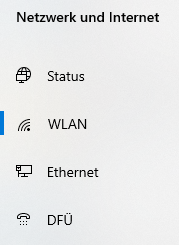
Select the "WLAN" tab.
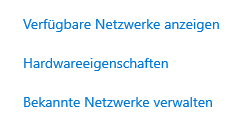
Click on "Manage known networks".

Search for "eduroam" and click "Do not save".
Close the settings.
Connect to the wlan network "eduroam" and enter your access data (e-mail address and corresponding password).
Having trouble connecting to eduroam?
After the annual password change, connection issues with eduroam may occur. This is because the Wi-Fi connection stored on your device still contains the old access data. To resolve this, the saved network connections need to be adjusted. The following instructions will guide you through this process.

1) Open the system settings and select "Wi-Fi" in the menu on the left side.
2) Then click on the 3 dots in the circle to the right of the eduroam network.
3) And then click on "Forget This Network...".

To confirm, click on "Remove" and close the system settings.


Connect to the "eduroam" Wi-Fi network and enter your access data: email address and corresponding password.
Having trouble connecting to eduroam?
After the annual password change, connection issues with eduroam may occur. This is because the Wi-Fi connection stored on your device still contains the old access data. To resolve this, the saved network connections need to be adjusted. The following instructions will guide you through this process.

Go to the "Settings" on your smartphone.

Now tap on Connections.

Tap on the submenu item "WI-FI".

Find "eduroam" from the list of networks and tap on it.

Now finally tap on "Forget"
The changes you have made have removed the old password from memory. The next time you connect to eduroam manually, you will be asked to enter your access data again. You can then log in with your UniBas email address and the new password.
Having trouble connecting to eduroam?
After the annual password change, connection issues with eduroam may occur. This is because the Wi-Fi connection stored on your device still contains the old access data. To resolve this, the saved network connections need to be adjusted. The following instructions will guide you through this process.

Go to the "Settings" on your IPhone.

Now tap on the "WI-FI" menu item

Now look for the WLAN with the name "eduroam" and tap on the "i-Sympol" to the right of the name.

Now tap on "Forget this network".
The changes you have made have removed the old password from memory. The next time you connect to eduroam manually, you will be asked to enter your access data again. You can then log in with your UniBas email address and the new password.
Quick Links